Digital Photography In Simple Steps
Book information
Description
Discover everything you want to know about digital photography in this easy to use guide, from the most essential tasks that youll want to perform, to solving the most common problems youll encounter. Digital Photography 2nd Edition In Simple Stepscovers every practical aspect of choosing and using a digital camera; from understanding its features and settings, to downloading and editing pictures onto your PC or laptop. This book is filled with easy to understand practical tasks that will help you to achieve immediate results. This series of vibrant books will teach you exactly what you need to know using A friendly, visual approach Easy-to-understand language Practical hands-on tasks Full-colour large format screenshots To build your confidence and help you to get the most out of your computer, practical hints, tips and shortcuts feature on every page: § ALERT! Explains and provides practical solutions to the most commonly encountered problems § HOT TIPS Time and effort saving shortcuts § SEE ALSO - Points you to other related tasks and information § DID YOU KNOW? Additional features to explore § WHAT DOES THIS MEAN? Jargon and technical terms explained in plain English Cover Digital Photography Dedication Author’s acknowledgements Publisher’s acknowledgements Contents at a glance Contents Top 10 Digital Photography Tips Tip 1: Download and install Picasa Tip 2: Set the picture quality Tip 3: Use Scene modes Tip 4: Use the zoom Tip 5: Connect your camera to your computer Tip 6: Make backups of your imported photos Tip 7: Tag a photo Tip 8: Crop the image Tip 9: Upload photos to Google+ Tip 10: Order prints online Digital photography basics Introduction Charge your camera Install your camera’s software Download and install Picasa Insert a memory card Set the capture format Set the picture quality Set the picture size Take your fi rst picture Review the pictures stored in your camera Care for your camera Use automatic settings Introduction Use autofocus Use face detection Use auto fl ash Reduce red-eye Use auto exposure Use auto white balance Use Scene modes Use the self-timer Take continuous shots Stabilise the image Use manual settings Introduction Use the zoom Use manual focus Set the shutter speed Set the aperture size Set the ISO speed Set manual white balance Use colour modes Use Panorama mode Get the best shot possible Introduction Consider how to focus the shot Consider how to frame the shot Consider the quality of the light Consider the direction of the light Consider your point of view Use the rule of thirds Use dynamic symmetry Tell one story at a time Transfer your photos Introduction Create a photo folder Set up Picasa to work with your photo folder Create backup sets in Picasa Connect your camera to your computer Import photos into Picasa Make backups of your imported photos View your imported photos Archive your photos Organise your photos Introduction View the contents of a folder all at once View the contents of a folder one photo at a time View two photos side by side Change the properties of a folder Move a photo into a different folder Rename a photo Add a caption to a photo Tag a photo Use Quick Tags Identify the people in your photos Identify the places in your photos Create an album Search for photos Process the image Introduction Adjust exposure automatically Adjust exposure manually Adjust white balance automatically Adjust white balance manually Adjust the colour temperature Adjust saturation Rotate the image Straighten the image Crop the image Remove red-eye Touch up the image Sharpen the image Blur the background Add text to the image Convert the photo to black and white or sepia Tint the image Remove edits Save edits Revert to the original image Share your photos on Google+ Introduction Sign up for Google+ Upload photos to Google+ Decide who can see your Google+ albums Share your Google+ albums with non-members by email Synchronise your Google+ albums Delete a Google+ album using Picasa Import photos from Google+ to Picasa Edit the image in Google+ Introduction Open a photo in Google+ Resize the image in Google+ Remove blemishes in Google+ Reduce skin glare in Google+ Even out complexion in Google+ Add a suntan in Google+ Apply face paint in Google+ Draw on the image in Google+ Add clip art to the image in Google+ Distort the image in Google+ Pixelate faces in Google+ Download photos from Google+ Make prints (and more) Introduction Print photos at home Order prints online Print contact sheets Create a poster Export photos as image fi les Email photos without Google+ Publish photos to your Blogger blog Create desktop wallpaper Create a screensaver Create a slideshow Create a movie from a slideshow Create a photo disc Top 10 Digital Photography Problems Solved Problem 1: My camera won’t turn on Problem 2: My camera runs out of power too quickly Problem 3: I run out of storage space on my camera too quickly Problem 4: My photos are too dark when I shoot indoors Problem 5: My photos come out looking blurry or shaky Problem 6: The people in my photos have red eyes Problem 7: My photos look much larger onscreen than they do in print Problem 8: My photos look ne onscreen, but they look horrible in print Problem 9: My photos take too long to upload to the Web or send by email Problem 10: When my photos come back from the chemist’s, parts of the photo are missing
Similar books

Pagemaker 7 from A to Z: A Quick Reference of More Than 300 PageMaker Tasks, Terms and Tricks
2001 · PDF

Digital Photography for Teens
2006 · PDF
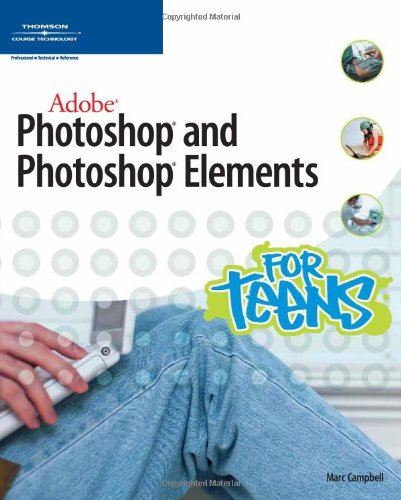
Adobe Photoshop and Photoshop Elements for Teens
2007 · PDF

IPod Repair QuickSteps
2007 · PDF

Dreamweaver 8 Design and Construction
2006 · CHM

Dreamweaver MX Developer Certification Study Guide
2002 · ZIP

Web Design Garage
2005 · CHM

Dreamweaver 8 Design and Construction
2006 · CHM