Adobe Indesign CC: A Complete Course and Compendium of Features
Book information
Description
The book you're reading about right now was created with Adobe InDesign CC. And that's the case no matter which reading format you prefer--whether it's the physical book made of plant fiber and ink, or the digital version made of electrons in an e-reader. In fact, most of the books, magazines, posters, and brochures you see were likely made with InDesign as well. It's all around you. Adobe InDesign CC: A Complete Course and Compendium of Features is your guide to building publications great or small in this ubiquitous page layout application. First, with a complete Course that includes a set of projects and lessons derived from the curriculum of award-winning and Adobe Certified Instructor Steve Laskevitch, you will learn the procedures needed to use InDesign professionally. Dozens of lessons are included that can be applied to any document you have in mind: engineering proposals, marketing collateral, spec sheets, magazines, newsletters, books, and more. Through these step-by-step lessons, you'll be exposed to all of InDesign's features in practical contexts and its best practices for publishing workflows. To complete the Course, we'll supply lesson documents and their assets to download. These can even serve as starting points for your own projects. Then, for greater depth of knowledge and subsequent reference, you'll use the Compendium to uncover more of the "how" and "why" of InDesign and publishing tech in general. With each topic easy to access, you can find and explore all of InDesign's key features and concepts in depth. With cross references between the Course and Compendium, the two parts of the book complement each other perfectly. Best of all, when the lessons in the Course are done, the Compendium will continue to serve for months and years to come. Learn step by step how to: - Create documents from postcards and posters to large books - Take control of typography and more with styles - Combine images with text for compelling layouts - Use color with predictable results - Prepare documents for both print and electronic output - And much more! "I've known Steve for over 20 years, and have always admired his empathy and passion for generously sharing his knowledge with others. He leverages his deep understanding of InDesign and takes the time to share what he hears from users to advocate on their behalf directly to the InDesign team to make the product better. This book will definitely help you become a more efficient InDesign user." -- Michael Ninness Formerly InDesign Product Manager Now Adobe's Senior Director "Steve's long relationship with Adobe InDesign and the people who actually built it make him the ideal person to guide any designer through the rich toolset that is Adobe InDesign. While his smouldering good looks and James Bond-like sophistication will not be of any value to the reader, his in-depth knowledge, years of delivering training, patience and good humour almost certainly will." -- Chris Kitchener Ex Group Product Manager for Adobe InDesign and Adobe Illustrator About the Author Acknowledgements The Course Introduction 1 Starting with a Solid Base Setting a Few Preferences When to Set Preferences General Interface Options Type Units & Increments Display Performance GPU Performance (if present) Configuring the Workspace Choose a More Useful Initial Workspace Create a New Workspace Project: An Introduction to Layout Lesson A: Create a New Document Lesson B: Placing the Images Place a Large, Full-Bleed Image Layers: Stacking and Protecting Content Create an Empty, Elliptical Frame Place an Image into That Circle Add a Colorful Stroke to the Frame Lesson C: Adding Text Procure a Few Fonts Add a Text Frame and Text The Title and Subhead Add Text Wrap That’s It! 2 Objects & Navigation Lesson A: Navigation Vital Keyboard Shortcuts Zooming & Panning Page Navigation Lesson B: Text Frame Basics From Frame to Text and Back Again Placeholder Text Text Formatting Basics Quick Resizing Tricks Lesson C: Image Frames Place an Image: Linking vs. Embedding Image Frames and Their Dis-Contents Content Grabber (a.k.a. the Donut) Lesson D: Shape and Frame Tools Selecting “Unassigned” Frames Applying Fills and Strokes Stacking Order Align and Distribute Gridify Groups Gridify Images Gridify Text Frames Object Styles Introduction Lesson E: Creating Swatches New Swatch Color Type Color Mode CC Libraries Recycle: Load Command Reuse: Copy & Paste Lesson F: The Power and Pitfalls of Defaults Lesson G: Troubleshooting Missing Fonts and Find Font Missing/Modified “Links” 3 Text Styles Lesson A: Acquiring Fonts Typeface Inspiration & Legitimate Online Sources Adobe Fonts Service Installing Fonts Lesson B: Typography Essentials Formatting Text Alignment Indents & Spacing Leading Kerning Tracking Lesson C: Building Paragraph Styles By Example: Emulating a Style Guide Applying Paragraph Styles Overrides: Style Violations Safely Editing Paragraph Styles Defaults—Again! Building Styles from Scratch Lesson D: Building Character Styles Applying Character Styles Safely Editing Character Styles Lesson E: Power Styling Keep Options GREP Styles: Find and Style Nested Styles: Style Text via Sequences Lesson F: Recycle and Reuse Copy & Paste Load Command Paste without Formatting CC Libraries Lesson G: Placing a Word Document Example 1: In a Perfect World Showing Import Options Example 2: In the Real World Showing Import Options Clean Up & Formatting with Find/Change Control the Scope of Find/Change Applying Styles with Find/Change Saving Queries 4 Tabs & Tables Lesson A: Tabs Setting Tab Stops Including Tab Stop Position in Paragraph Styles Lesson B: Tables & Table Styles Create Tables by Converting Text Style Waterfall Adjusting Rows and Columns Create Tables by Placing Spreadsheets 5 Frame Options & Object Styles Lesson A: Multiple Text Columns Columns and Gutters Frames as Columns: Threading Text Adding Frames and Deleting Frames Lesson B: The Text Frame Options Dialog Box Baseline Options Inset Auto-Size Balancing Columns Vertical Justification Lesson C: Leverage Object Styles For Text Frame Options For Image Frames Frame Fitting & Size and Position Options Frame Fitting Options Text Wrap Object Styles and Groups: Beware Object Styles Applied to Groups Paste Into Lesson D: Combining Paragraph and Object Styles Project: Promotional Handout Lesson A: Create a New Document This Document’s Settings Start with a Preset Customize The Settings Lesson B: Preparing for Content Introduction to Master Pages Build Styles with Placeholder Text Choose Defaults Lesson D: Inserting the Text Lesson E: Placing Images Placing Images into Placeholder Frames 6 Document Structure Lesson A: Layers Controlling Stacking Order For Segregating Content For Protecting Content Reordering Layers Lesson B: Master Pages & Sections Sections Section Markers Page Numbers “Templates” for Pages and Spreads Ensure Consistency Overriding Master Page Items Primary Text Frames vs. Master Text Frames Lesson C: Adding, Deleting, and Moving Pages Insert Pages Page “Shuffling” Project: Build a Brochure Lesson A: Configure a New Document Create a New Document with Primary Text Frames Start with a Preset Customize the Settings Set Preferences & Display Performance Preferences Display Performance Save Load & Examine Styles Object Styles Paragraph Styles Character Styles Layers Prepare the Master Spread Lesson B: Place a Word Document Placing the Word Doc Lesson C: Clean Up the Formatting Find/Change to the Rescue Lesson D: Insert Cover Pages Add a Front Cover at the Beginning Add a Back Cover at the End Remind Pages of Their Masters Lesson E: Place Images and Graphics The Steps The Images 7 Long Documents Lesson A: Tables of Contents Building a Dummy TOC Requires a Commitment to Styles-Use Generating a TOC Updating a TOC Lesson B: Cross References Requires a Commitment to Styles-Use Referencing Arbitrary Text Lesson C: Text Variables Update Display Bug Lesson D: Find/Change Turned Up to 11 GREP: Find Patterns, Locations, and More Find/Change Glyphs Find/Change Object Formatting Lesson E: Book Document Let’s Assemble a Magazine! 8 Output Lesson A: PDF Using Presets Making a Small, Downloadable PDF Making a Possibly Press-Ready PDF Lesson B: Packaging Lesson C: ePub (and HTML) Including Content Object Export Options Export Tagging Generating the Reflowable ePub The Compendium 1 Workspaces & Preferences Preferences Document-Specific and Global General Show “Start” Workspace When No Documents Are Open Page Numbering Prevent Selection of Locked Objects Apply to Content/Adjust Scaling Percentage Interface Appearance Color Theme Match Pasteboard to Theme Color Cursor and Gesture Options Tool Tips Show Thumbnails on Place Enable Multi-Touch Gestures Highlight Object Under Selection Tool Panels Floating Tools Panel Auto-Collapse Icon Panels/Auto-Show Hidden Panels Options Hand Tool Live Screen Drawing Type Use Typographer’s Quotes Type Tool Converts Frames to Text Frames Triple Click to Select a Line Apply Leading to Entire Paragraphs Drag and Drop Text Editing Smart Text Reflow Advanced Type Character Settings Input Method Options Use Inline Input for Non-Latin Text Missing Glyph Protection Type Contextual Controls Composition Highlight Keep Violations H&J Violations Custom Tracking/Kerning Substituted Fonts Substituted Glyphs Text Wrap Justify Text Next to an Object Skip by Leading Text Wrap Only Affects Text Beneath Units & Increments Ruler Units Keyboard Increments Cursor Key Baseline Shift Size/Leading Kerning/Tracking Grids Baseline Grid Document Grid Guides & Pasteboard Guide Options Smart Guide Options Pasteboard Options Dictionary Language Double Quotes and Single Quotes Hyphenation Exceptions User Dictionary Spelling Find Dynamic Spelling Autocorrect Notes Track Changes Show Change Bars Story Editor Display Text Display Options and Cursor Options Display Performance Default View Adjust View Settings GPU Performance Appearance of Black On Screen Printing/Exporting File Handling Document Recovery Data Saving InDesign Files Snippet Import Links Check Links Before Opening Document Find Missing Links Before Opening Document Create Links When Placing Text and Spreadsheet Files Preserve Image Dimensions When Relinking Hide New Layers When Updating or Relinking Clipboard Handling Clipboard Prefer PDF When Pasting Copy PDF to Clipboard Preserve PDF Data at Quit When Pasting Text and Tables from Other Applications Paste Publish Online Disable Publish Online Panel Locations Choose a More Useful Initial Workspace Creating a New Column of Panels Customizing Menus & Keyboard Shortcuts What’s on the Menu? Keys to Success 2 Frames & Content Creating Frames and Shapes Rectangle Ellipse Gridify Polygon Fills & Strokes Create a New Color Swatch Gradients & Gradient Swatches The Stroke Panel Stroke Type Align Stroke Gap Color Start/End Miter Limit Frame to Content & Content to Frame Text Frames Image Frames Content Grabber Text Frames & Text Frame Options Linking Text Frames Manual Text Flow Semiautomatic Text Threading Automatic Text Threading Fixed Page Text Threading Scaled Text Preferences Text Frame Options Columns Fixed Number Fixed Width Inset Spacing Vertical Justification Baseline Options First Baseline Offset Baseline Grid Auto-Size Footnotes Image Frames & Linked Images Linking vs. Embedding Placing Images Frame Fitting Options Edit Original Modified Links Missing Links & Relinking Gridify Images Placing a Grid of Images Groups and Accessing Their Content Double-Click to Get In, Escape to Get Out Alignment & Distribution Guides Smart Guides Align Panel Precise Positioning and Sizing Transforms Movement With the Selection Tool—Two Ways X Location & Y Location Fields Rotation With the Selection Tool & Bounding Box Rotate Tool Rotation Buttons & Angle Field Scaling With the Selection Tool & Bounding Box Scale Tool Width & Height Fields Scale X Percentage & Scale Y Percentage Fields Reflection With the Selection Tool & Bounding Box Flip Buttons Shearing Shear Tool Shear X Angle Field Direct Selection Tool Free Transform Tool Pathfinder Compound Path Effects Live Corners Widget and Corner Options Dialog Box Effects Panel & Dialog Box Text Wrap & Anchored Objects Text Wrap: Force Fields on Objects Wrap Around Bounding Box Jump Object & Jump to Next Column Wrap Around Object Shape—It’s Tricky! Anchored Objects Inline Objects—In the Flow Above Line & Custom Custom Anchored Objects—Keeping Anchored Frames on a Short Leash Anchored Objects and Text Wrap Together 3 Styles, Type & Fonts Working with Type Vocabulary & Anatomy Adjusting Type in InDesign Kerning & Tracking Leading Scaling Proper Italic & Bold Alignment Indents & Spacing Font Technologies Adobe Fonts and Other Font Services Missing Fonts Paragraph Styles Creating a Paragraph Style Applying a Paragraph Style Editing a Paragraph Style General Options Based On Next Style Basic Character Formats Leading Kerning Tracking Case Ligatures No Break Advanced Character Formats Indents and Spacing Alignment Indents Align to Grid Space Before and Space After Space Between Paragraphs Using Same Style Ignore Optical Margin Tabs Paragraph Rules Paragraph Border & Paragraph Shading Keep Options Hyphenation & Justification Spanning & Splitting Columns Drop Caps and Nested Styles (and Line Styles) Drop Caps Nested Styles GREP Style Bullets and Numbering Character Color OpenType Features Figure Styles Stylistic Sets Underline & Strikethrough Options Output Tagging Character Styles Consistency Protection Creating a Character Style Applying a Character Style Editing a Character Style Output Tagging Object Styles Creating an Object Style Applying an Object Style Editing an Object Style The Attributes Controlled by Object Styles Size and Position Options Table & Cell Styles Placing a Table Table Style To-Do List The Paragraph Styles The Cell Styles General Text Graphic Strokes and Fills Diagonal Lines The Table Style General Table Setup Row Strokes and Column Strokes Fills Loading Styles from Other Docs 4 Pages & Spreads Anatomy of a Spread Margins and Bleeds and Gutters, Oh My! Navigating Pages The Pages Panel Master Pages Naming Masters Current Page Number Marker Applying Master Pages The [None] Master Overrides Text and Image Frames Primary Text Frames & Smart Text Reflow Sections & Numbering Starting and Editing Sections Section Markers Shuffling Building Gatefolds Page Size & Layout Adjustment Adjust Layout 5 Color Management The Basics RGB CMYK Process vs. Spot (Solid) Spot Color Process Color Color Myths, Theory, and Management Best Practices Grasping at Light Devices and Their Disappointing Limitations So What Should I Do? Profiles The Flexibility of RGB The Useful Rigidity of CMYK Final Advice 6 Find/Change The Basics Setting Scope Find/Change Formatting Special Characters and Metacharacters GREP Code for Good Building a Query More Grep Queries Grep Resources Finding Glyphs What’s a Glyph? Finding Objects The Powers of Description 7 Long Documents The Book Feature Creating and Populating a Book Document Syncing and Status Layers Stacking Order Creating Layers Moving Content Between Layers Reordering Layers Segregating Types of Content Deleting Layers Tables of Contents (TOCs) Preparation Creating the TOC Updating a Table of Contents TOC Styles Text Variables Chapter Numbers Captions Running Headers Cross References The Destination Building a Cross Reference Footnotes and Endnotes Footnotes Endnotes Indexes Create a Topic List Create Index Markers and References Generate the Index Get Help 8 Output PDF Presets General Options Compression Marks and Bleeds Output Advanced Security Package A Copy of Everything ePub and Tagged File Formats Export Tagging Choosing What Gets Exported and How Exporting an ePub General Text Object and Conversion Settings HTML & CSS JavaScript Metadata Viewing Apps Last ePub Note Print Print Dialog Box General Setup Marks and Bleed Output Graphics Color Management Advanced Print Booklet Appendix Keyboard Shortcuts Rocky Nook
Similar books
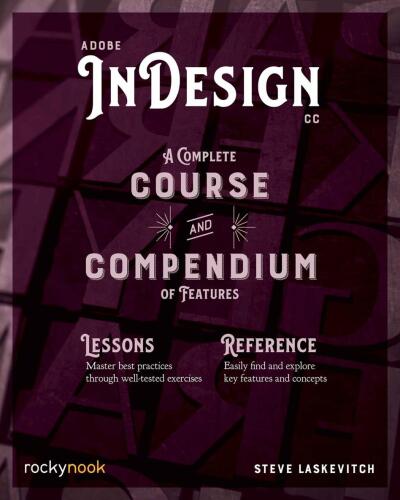
Adobe InDesign CC: A Complete Course and Compendium of Features
EPUB

Adobe Photoshop: A Complete Course and Compendium of Features
2020 · EPUB

Adobe Photoshop: A Complete Course and Compendium of Features
2020 · EPUB

Photoshop CS6 and Lightroom 4: A Photographer's Handbook
2012 · MOBI

Photoshop CS6 and Lightroom 4 A Photographer’s Handbook
2012 · PDF

Photoshop CS6 and Lightroom 4: A Photographer's Handbook
2012 · EPUB

Photoshop CS6 and Lightroom 4: A Photographer's Handbook
2012 · MOBI

Photoshop CS5 and Lightroom 3: A Photographer's Handbook
2010 · PDF